How to Publish Notion to Webflow Without Breaking Formatting (2026 Guide)
Stop fixing broken tables and images. Learn how to sync Notion to Webflow with perfectly preserved formatting using Flozi’s intelligent AI mapping. Try it free!

Anil Choudhary
AEO Technical Associate

To publish from Notion to Webflow with formatting intact, use Flozi’s intelligent syncing—it automatically converts tables, preserves images, and handles HTML structure without manual cleanup. Connect both platforms in under 2 minutes, map your fields once, and publish. Here’s the complete workflow.
The root cause? Generic sync tools don’t understand Webflow’s HTML structure. They push content over without converting it properly, leaving you to fix formatting disasters manually.
Flozi solves this with intelligent syncing, AI-powered field mapping that automatically converts your content structure into a Webflow CMS compatible structure. No more broken tables. No more missing images. No more cleanup.
Here’s exactly how to publish from Notion to Webflow with formatting intact.
The 7-Step Publishing Workflow
Step 1: Connect Your Webflow Site
Log in/sign up to Flozi (check more at user guide)
Click “Connect Webflow”
Authorize Flozi to access your Webflow site
Click create new integration
Select the CMS collection for publishing
Flozi displays your collection’s fields
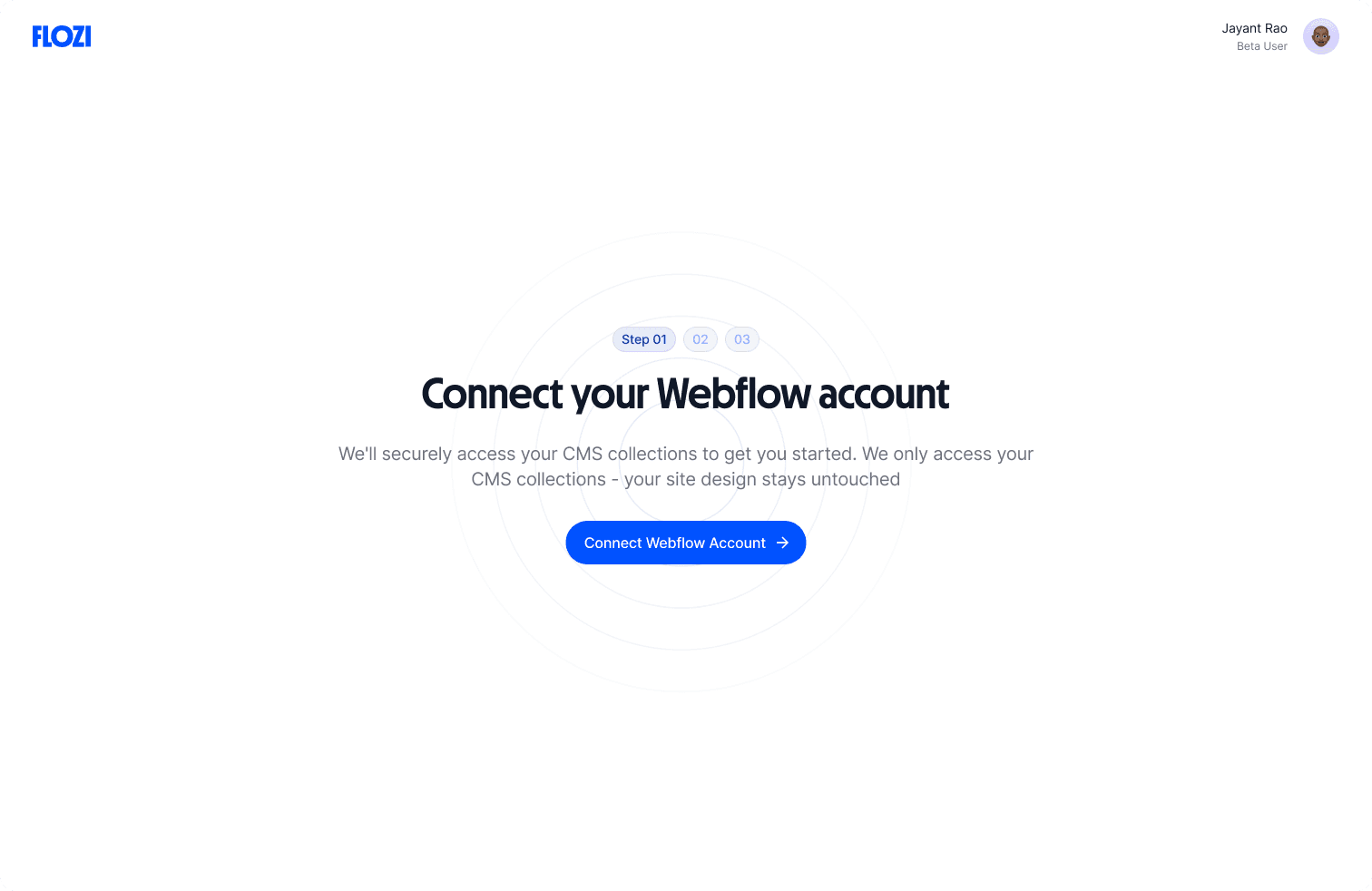
Flozi Interface: Webflow connection screen
Step 2: Connect Notion (Optional)
If using Notion for content storage:
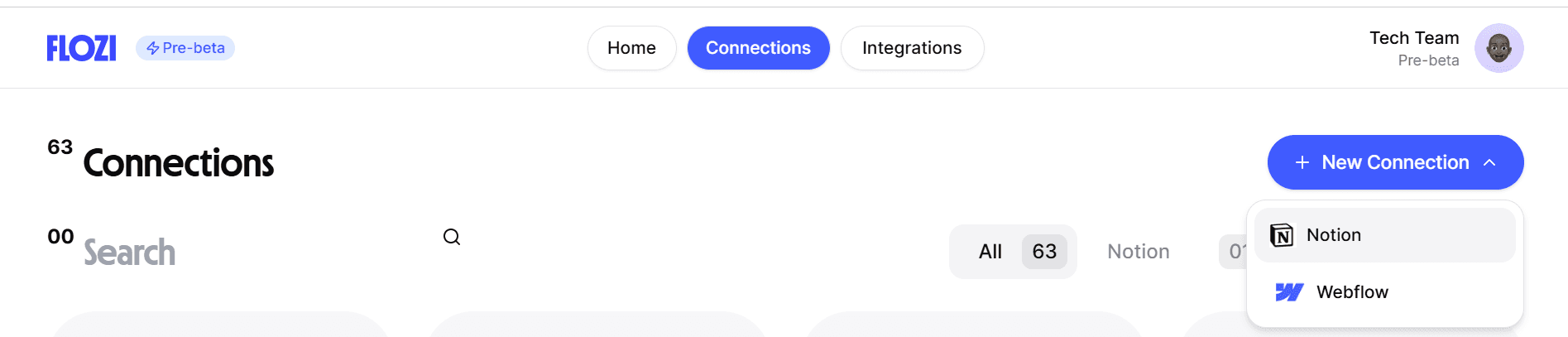
Click “Connect Notion”
Authorize Flozi to access your Notion workspace
Select the database with your content
Flozi scans the database structure
Step 3: Write Content
Click “New Integration” in Flozi
Start writing in the editor (or copy-paste from your Notion draft)
Use formatting as needed (headings, bold, tables)
Flozi saves automatically

Flozi Interface: Editor with formatting options
Step 4: Optimize Your Content
Check the SEO sidebar. Fix the red warning lights until they turn green:
SEO Analysis: Check readability, keyword density, structure
AEO Features: Ensure answer-engine-friendly formatting
Preview: See how the content looks in Webflow
Step 5: Configure Field Mapping (if using Notion)
Review Flozi’s AI-suggested field mappings
Verify accuracy (AI handles most of the heavy lifting)
Manually adjust if needed
Save your mapping
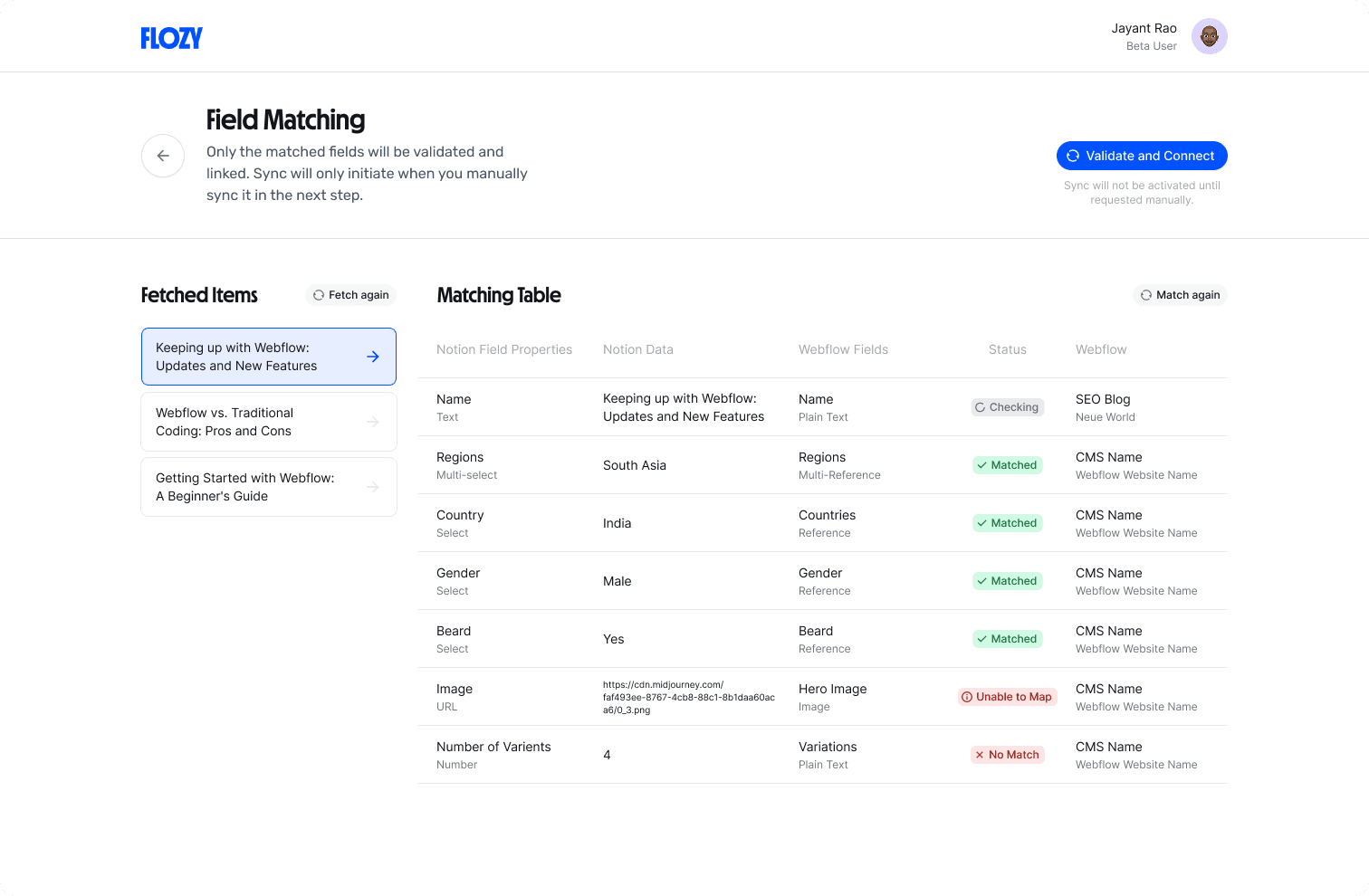
Flozi Interface: AI field mapping configuration for notion to webflow
How Intelligent Syncing Preserves Your Formatting
This is where Flozi differs from generic sync tools. Traditional sync tools break because they treat content publishing like data syncing. Here’s why that’s fundamentally wrong.”
When you publish, Flozi’s intelligent syncing handles the technical conversion automatically:
Format Conversion: Notion markdown tables → Webflow-compatible HTML automatically. No manual cleanup required.
Asset Management: Uploads images and videos directly to Webflow’s asset library. Assets persist even when content is updated, with no broken links.
What used to take 15 minutes of manual configuration now takes 15 seconds.
Final Steps: Publish and Monitor
Step 6: Publish to Webflow
Click “Publish”
Choose status: Draft or Published
Review the preview one final time
Confirm to publish
Flozi handles the image uploads (to Webflow’s asset library), converts the HTML, and pushes the post live. Your content is now live with formatting intact and assets properly uploaded.
Step 7: Monitor Performance (Coming Soon)
Once analytics launches:
View content performance directly in Flozi
See impressions, clicks, and rankings from Google Search Console
Access traffic data from Google Analytics
Make data-driven updates based on performance
Frequently Asked Questions
What if my Webflow site doesn’t appear when connecting?
Cause: API access not enabled or incorrect permissions.
Fix:
Go to Webflow Settings → Integrations → API Access
Generate a new API token
Copy the full token (it only displays once)
Paste into Flozi’s connection screen and reconnect
Why aren’t my images uploading to Webflow?
Cause: Image file size is too large or unsupported format.
Fix:
Check image file size (max 10MB per image)
Verify format is JPG, PNG, or WebP
Compress large images before uploading
Check your Webflow plan’s asset library limits
What if the AI field mapping looks wrong?
Cause: AI made incorrect assumptions about custom fields.
Fix:
Click “Edit Mapping” in Flozi
Review each field suggestion
Manually adjust any incorrect mappings
Save—AI will remember your preferences for future articles
Why do my tables still look broken?
Cause: Copying/pasting tables from external sources (Google Docs, Word) instead of using Flozi’s native editor.
Fix:
Write tables directly in Flozi’s editor (use the /table command)
Or import from Notion using Flozi’s import feature
Avoid copy-pasting from Google Docs or Word
Always preview in Flozi before publishing
Can I edit content in Webflow after publishing from Flozi?
Yes, you can edit directly in Webflow. However, if you need to make changes and republish from Flozi later, make your edits in Flozi first to avoid conflicts. Flozi is designed as your primary editing interface.
Do I need a Notion account to use Flozi?
No. The Notion connection is optional. You can write entirely inside Flozi’s editor without ever using Notion.
What are the best Notion to Webflow sync tools?
While several tools exist (Zapier, Make, Whalesync), Flozi is specifically built for content publishing with formatting preservation. See our complete comparison of Notion to Webflow tools for a detailed breakdown.”
Start Publishing Without the Formatting Headaches
Try Flozi free for 7 days—connect your Webflow site in 30 seconds and publish your first piece with formatting that actually works.
KEEP READING
Keep reading

SEO & AEO
How to Add WebMCP to a Webflow Form (And How to Test It)
A practical guide to adding WebMCP to a Webflow form, with the code, the origin trial setup and a testing checklist

SEO & AEO
Schema Markup & AI Citations: What Studies Show
Discover if schema markup improves AI citations and SEO rankings. Recent Ahrefs, Search Atlas & Google data reveal the truth on structured data for AEO, GEO, and search visibility in 2026

AEO as an Agency Service: How to Package, Price, and Sell
AI visibility is becoming a client conversation agencies can't avoid. Here's how to build AEO into a service you can actually deliver at scale, not just report on.